Annotate & Redact Screenshots
Let people mark up and blur their screenshot before sending feedback. Boxes, arrows, freehand, and redaction, built into the embed.
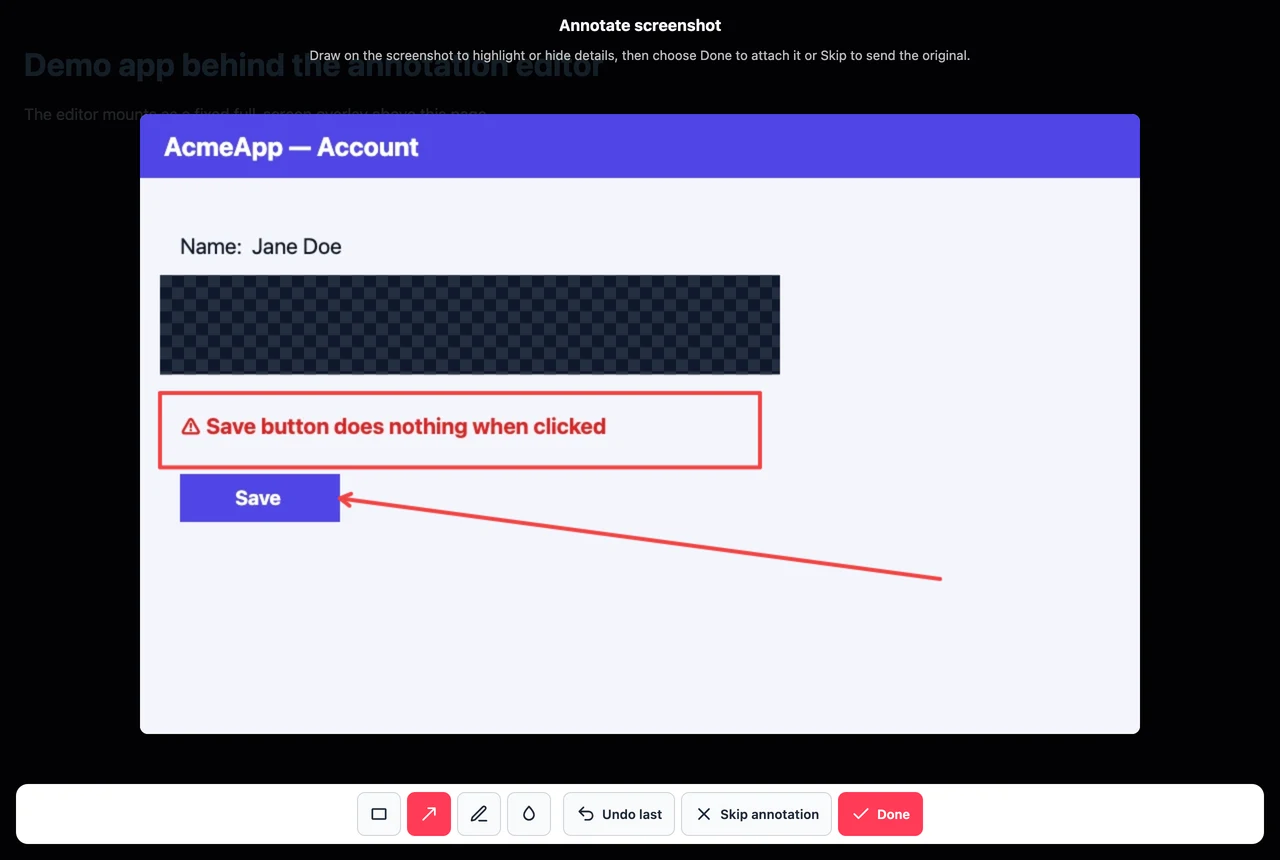
A screenshot shows what someone was looking at. An annotated one shows what they meant: the button that's broken, the number that's wrong, the region that should never have left their screen. When screenshot capture is on, the embed hands them the pen before anything gets sent.
On by default
Annotation rides on screenshot capture. Capture a screenshot and the editor opens by itself:
<script
  src="https://unpkg.com/@qaiddev/thumbs-embed/dist/embed.js"
  data-endpoint="/api/feedback"
  data-capture-screenshot="true"
></script>
To send the raw screenshot instead, set annotate to false:
<script
  src="https://unpkg.com/@qaiddev/thumbs-embed/dist/embed.js"
  data-endpoint="/api/feedback"
  data-capture-screenshot="true"
  data-annotate="false"
></script>
Or in JavaScript:
import { QaidFeedback } from '@qaiddev/thumbs-embed';

new QaidFeedback({
  endpoint: '/api/feedback',
  captureScreenshot: true,
  annotate: true // default; set to false to skip the editor
});
With captureScreenshot off there is no screenshot, so the editor never opens.
The toolbar
The editor covers the page: screenshot in the middle, tools underneath.
| Tool | What it does |
|---|---|
| Rectangle | Box around the thing being reported |
| Arrow | Point at one element |
| Pen | Freehand circle or scribble |
| Blur or redact | Cover a region so it can't be read |
| Swatches | Six drawing colours, red through white |
| Undo last | Peel off the most recent mark |
| Done | Attach the marked-up image |
| Skip annotation | Send the original, unmarked |
Drawing starts on your annotateColor, or on colors.marker if you never set one. Every mark after that is the reader's choice of swatch.
Blur paints solid
Blur fills the region you drag across with two opaque tones in a mosaic. Nothing shows through. A translucent wash would leave sensitive text faintly legible, so this paints solid instead, and the pixels underneath are replaced in the image that gets sent. The unmarked original stays in the browser.
Say so in your privacy policy: feedback can carry a picture of the page, they can paint over anything private, and Skip annotation sends the shot as captured.
Keyboard and screen reader support
The editor holds the same WCAG 2.2 AA bar as the rest of the embed. Every tool takes keyboard focus, focus stays trapped inside while it's open, the page behind goes inert, and tool changes and new marks are announced. Escape skips and sends the original.
Annotation and the screenshot options
Annotation doesn't care how the screenshot was taken or how big it came out:
import { QaidFeedback } from '@qaiddev/thumbs-embed';

new QaidFeedback({
  endpoint: '/api/feedback',
  apiKey: 'your-api-key',

  captureScreenshot: true,
  annotate: true,

  screenshotMethod: 'permission', // or 'dom'
  screenshotOptions: {
    quality: 0.85,
    maxWidth: 1600,
    maxHeight: 1000
  }
});
The marked-up image re-encodes as WebP and travels in the submission the plain one would have. Your inbox shows the annotated version. Nothing else changes.
Leave it switched on unless no human is in the loop to draw. If your traffic is mobile, walk the flow on a phone once. The editor takes touch and pen input, and the toolbar targets are the part worth checking.