Ask Follow-Up Questions: Link Thumbs Buttons to Quests
Replace the optional message box with a targeted quest: one set of questions after a thumbs-up, another after a thumbs-down, another after a screen recording.
Every thumbs click ends at the same box: "Would you like to add a message?" A thumbs-down wants asking which part went wrong. A thumbs-up wants asking what to build next. One textarea does neither job well.
Point each button at a quest instead: a short questionnaire from @qaiddev/quests-embed. Thumbs-up gets one, thumbs-down another, the video button a third. The thumbs embed grows no questionnaire logic; it hands off and gets out of the way.
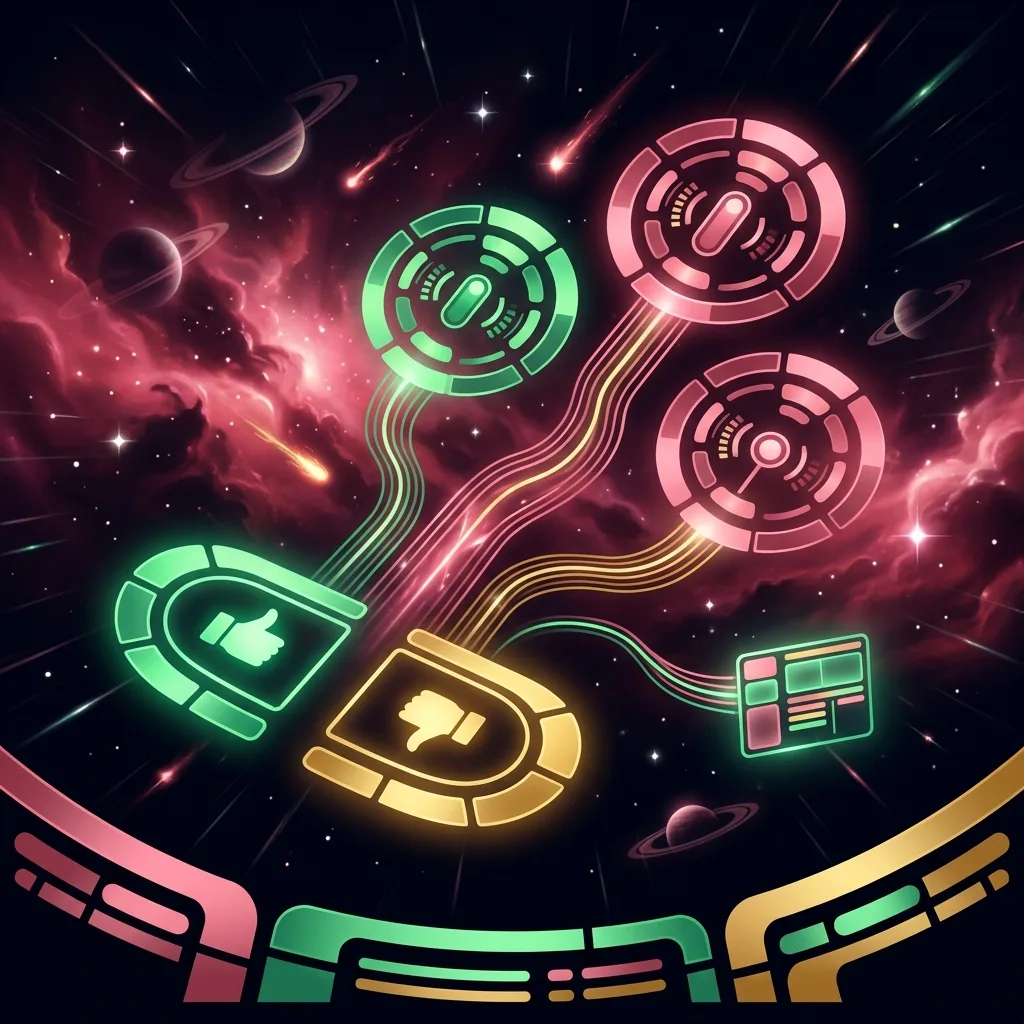
The idea in one picture
thumbs-up   ──▶  "What did you love?" quest
thumbs-down ──▶  "What went wrong?" quest
video sent  ──▶  "Can we follow up?" quest
Every link is optional. An unset button keeps the message box; no base turns the feature off.
Before you start
You need a project and its API key. One key covers both feedback and quest responses.
You also need a published quest per button. Build them in the quest editor. All you take away is each quest's ID, which is in the editor URL and the Embed panel.
Adding the quests block
One object on your existing config. Only base is required, and on Qaid it is https://qaid.dev/api/quests:
import { QaidFeedback } from '@qaiddev/thumbs-embed';

new QaidFeedback({
  endpoint: 'https://qaid.dev/api/feedback',
  apiKey: 'YOUR_API_KEY',
  captureVideo: true,
  quests: {
    base: 'https://qaid.dev/api/quests',
    up: 'QUEST_ID_FOR_THUMBS_UP',     // optional
    down: 'QUEST_ID_FOR_THUMBS_DOWN', // optional
    video: 'QUEST_ID_AFTER_VIDEO',    // optional
  },
});
Every field has a data-quest-* equivalent:
<script
  src="https://unpkg.com/@qaiddev/thumbs-embed/dist/embed.js"
  data-endpoint="https://qaid.dev/api/feedback"
  data-api-key="YOUR_API_KEY"
  data-capture-video="true"
  data-quest-base="https://qaid.dev/api/quests"
  data-quest-up="QUEST_ID_FOR_THUMBS_UP"
  data-quest-down="QUEST_ID_FOR_THUMBS_DOWN"
  data-quest-video="QUEST_ID_AFTER_VIDEO"
></script>
That is the setup. A thumbs-up now records the feedback and opens the linked quest as a centred modal. The quest brings its own backdrop, focus trap and close button, and finishing or closing it returns you to the page.
Where the URLs come from
A base and a quest ID build both routes:
| What | URL |
|---|---|
| Quest definition (fetched by the embed) | {base}/{questId}/definition |
| Response endpoint (create / autosave / submit) | {base}/responses |
So up: 'abc123' reads from https://qaid.dev/api/quests/abc123/definition and posts to https://qaid.dev/api/quests/responses. Self-hosting means pointing base at a service with the same two routes.
A different set of questions per button
Each button gets its own questions:
new QaidFeedback({
  endpoint: 'https://qaid.dev/api/feedback',
  apiKey: 'YOUR_API_KEY',
  quests: {
    base: 'https://qaid.dev/api/quests',
    // Happy path: find out what to double down on.
    up: 'nps-and-what-to-build-next',
    // Unhappy path: triage the problem.
    down: 'what-broke-and-how-severe',
  },
});
Only thumbs-up and thumbs-down are linked here. An enabled video button would keep its normal review-and-send flow.
The video quest opens after the upload, not before
A recording is impossible to recreate, so nothing stands between it and the server. The order is fixed:
- The visitor records their screen and reviews it.
- They click Send and the recording uploads as usual.
- Then the video quest opens.
The recording is stored before any question appears. Leave quests.video unset and none of this changes.
Answers join back to the feedback
Launching a quest passes the ID of the feedback record just created, and the response stores it as feedbackId. A thumbs-down and the answers after it stay one story rather than two unrelated rows.
Feedback  { id: "clx…42", type: "down" }
              ▲
              │ feedbackId
QuestResponse { id: "clx…99", answers: { severity: "high", … } }
The server checks it: a response only attaches to feedback in the same project, so a forged ID cannot reach across.
What happens when the quest cannot load
The quests package is not bundled in. It is fetched from a CDN the first time a quest fires, which keeps the thumbs script small. Two consequences:
A failed load falls back to the message box. A blocked CDN costs you the questionnaire, never the feedback.
And it has to be reachable at runtime. The default is the unpkg build; moduleUrl pins a version or points at your own copy:
quests: {
  base: 'https://qaid.dev/api/quests',
  up: 'abc123',
  moduleUrl: 'https://your-cdn.example.com/quests-embed/qaid-quests.js',
}
Theming carries over
Both embeds read the same --qaid-* variables and colors namespace, so the theme on your buttons already styles the quest. See brand color matching.
Where the answers show up
In the quest's Responses and Analytics tabs, with the linked feedback beside them. Feedback still reaches your inbox as before.
Next
Design the quests in Getting Started with Quests, add conditional questions, and match your brand with theming.