

Linear & Jira: Turn Feedback Into Tickets
Connect Linear or Jira to a project, create issues from feedback in one click, and keep the two in sync as issues open and close.
Feedback is only useful once it turns into work. Connect a tracker and Qaid opens a Linear or Jira issue straight from a feedback item, carrying the message, the page, the screenshot, the console errors and an AI-written summary. Close the issue later and the feedback follows it.
Connect a tracker
Open your project's Settings and pick the Trackers tab. Both trackers connect with an API key. There is no OAuth app to register.
Linear
- In Linear, open Settings → Security & access (or Settings → API) and
create a Personal API key. Copy it; it starts with
lin_api_. - Back in Qaid, paste the key under Linear and click Validate.
- Pick the team new issues should land in, then click Connect Linear.
Jira
- Create an API token at id.atlassian.com → Security → Create and manage API tokens. Copy it.
- In Qaid, under Jira, enter your site URL (
https://your-site.atlassian.net), the email for your Atlassian account, and the API token. Click Validate. - Pick the project to file issues under, then click Connect Jira.
Validation lists your teams or projects before saving anything, so a bad key fails there rather than the first time you file an issue. Linear and Jira can both be connected to one project.
Create an issue from feedback
Open a feedback item and look under Integrations. Each connected tracker has its own button.
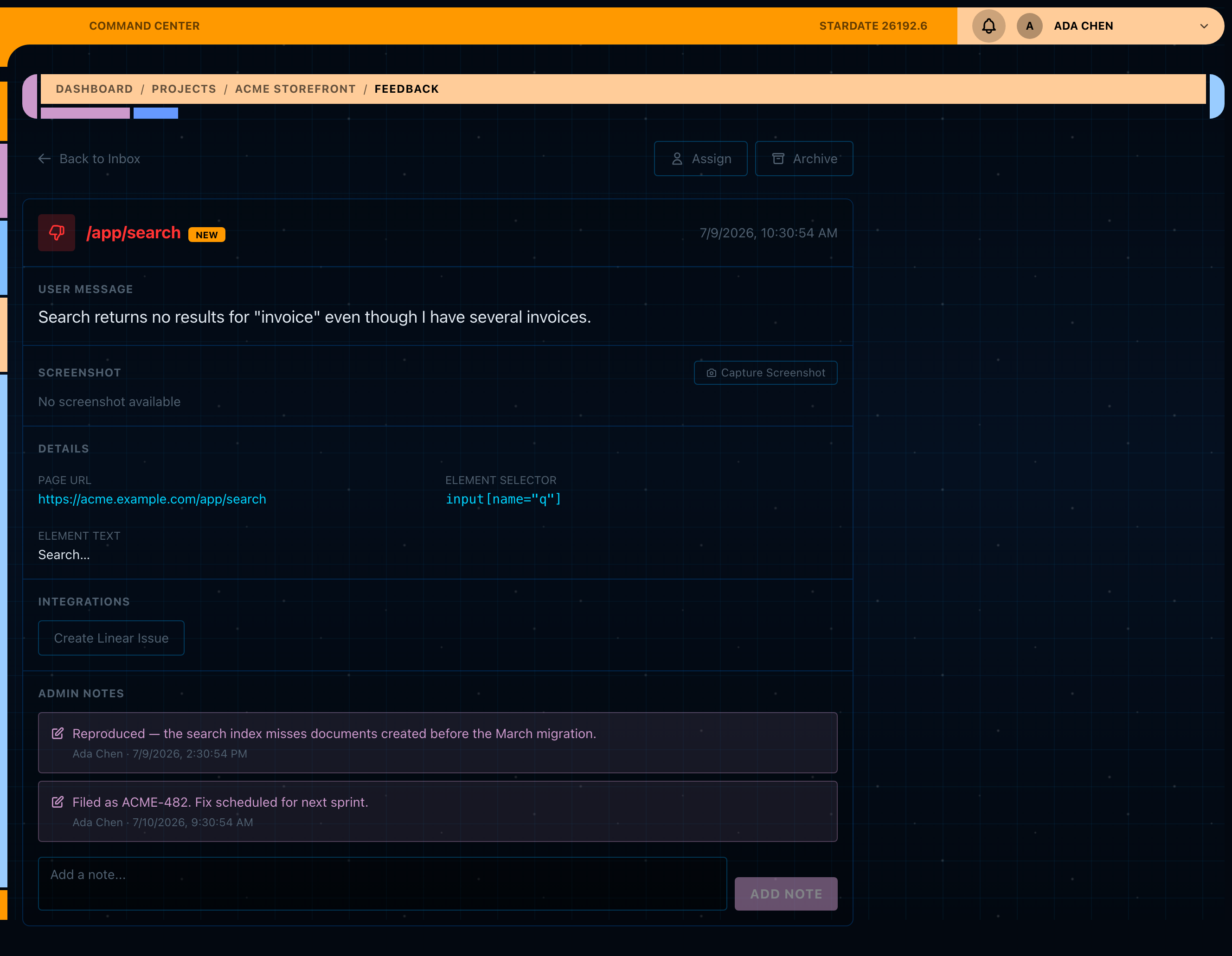
Claude writes the title and summary from the feedback and puts a priority on the front. The description carries the message, the page URL, the targeted element, the console errors and a link back, rendered as rich text on Jira. Priority maps onto the tracker's own field, and Jira issues also get labels: qaid-feedback, the feedback type, the severity, and priority-….
The button then turns into a link to the issue, Linear ENG-42 or similar. One issue per tracker per feedback item, so a second click cannot duplicate it.
Do it in bulk
Tick several items in the inbox and use Create issues in the bulk toolbar. Anything that already has an issue in that tracker gets skipped.
Auto-create on escalation
Tick Auto-create an issue when feedback is escalated on the tracker's card. Anything matching one of your escalation rules then files itself. Escalation rules are Pro.
Keep feedback and issues in sync
Sync runs the other way too. Mark the issue Done and Qaid archives the feedback behind it; reopen the issue and the feedback comes back. Every change lands as an admin note.
Copy the connection's webhook URL from the Trackers tab and register it:
- Linear: Settings → API → Webhooks → New webhook, paste the URL, and subscribe to Issues.
- Jira: Settings → System → Webhooks → Create a webhook, paste the URL, and select the issue updated event.
That URL carries a per-connection secret. Anyone holding it can post status updates for the project, so treat it like a password. Disconnect and reconnect the tracker to rotate it.
Good to know
Keys are stored per project, and only the owner can connect, disconnect or change a tracker. Any team member can file issues once it is connected.
Both key types carry your whole account's access. A Linear personal key and a Jira API token can reach everything you can, so connect with an account whose reach you are happy about, and disconnect to revoke.
Jira priority is best effort. If your project uses a scheme that rejects the mapped value, Qaid files the issue without a priority rather than failing, and the labels still carry it.
For a Slack ping or your own endpoint instead of a tracker, see Webhooks & Slack.